MovieBox Is Not Working: A Diagnostic Checklist Before You Reinstall
Introduction
When a streaming app stops working, reinstalling feels like the fastest fix. Sometimes it helps, but often it only hides the real problem — and it can cost you saved settings, watch history, and downloads. A slow connection, a full phone, an outdated version, or a title that is simply unavailable will not be fixed by a fresh install, and a new install from an unverified source can add a new risk of its own.
This checklist works through the most common causes in order, from the simplest to the most disruptive. Work down it step by step, and stop as soon as the problem is explained. You do not need to finish every step, and you do not need to reinstall unless the earlier checks point to a damaged or mismatched installation. For general information about MovieBox, you can start with the overview on the movieboxapp.buzz homepage (https://movieboxapp.buzz/).
First, Describe the Problem Exactly
“Not working” covers very different problems, and each one points in a different direction. Before changing anything, note what actually happens:
- Does the app fail to open at all, crash on launch, or freeze on a loading screen?
- Does it open, but no titles load, or do titles load without playing?
- Does one title fail while others play normally?
- Did the problem start after an update, a device change, or a network change?
If only one title fails, the problem is more likely to be that title’s source or availability than your device. If nothing loads, the problem is more likely to be connection, account, or app-wide. If the app crashes immediately, device compatibility, storage, or a corrupted install is more likely. Writing down the symptom saves you from trying fixes for the wrong cause.
Check Your Connection Before the App
Streaming depends on a stable connection, not just a signal icon. A phone can show full bars while still struggling to stream video, especially on a congested public network or a weak Wi-Fi signal in another room.
Try loading a well-known website or a licensed streaming service first. If those also fail or stutter, the issue is your connection, not the app. Move closer to your router, switch between Wi-Fi and mobile data if you can, or restart your router. Avoid changing app settings while the network itself is unreliable — you may create a second problem while chasing the first.
Also check whether you are on a network with restrictions, such as a workplace, school, or public hotspot. Some networks block streaming traffic or certain domains. If the app works on mobile data but not on that Wi-Fi, the network is the likely cause.
Check the Device: Storage, Memory and Updates
A device that is nearly full or running many apps at once can make a streaming app behave strangely. Video playback needs free space for temporary data, and a phone with very little storage left may fail to load images, save settings, or start playback at all.
Check how much free storage you have, and free up space if it is very low. Close apps you are not using, and restart the phone — a restart clears temporary problems that accumulate over days of use. Also check that your device software is up to date, because an old system version can conflict with a newer app version, and a very new system version can temporarily conflict with an older app.
If you recently changed devices, check the basics from the device-compatibility side as well: an app that worked on a newer phone may not work the same way on an older phone with less memory or an older Android version. That is a compatibility limit, not necessarily a fault you can fix by reinstalling.
Check the Version, Without Trusting the Number Alone
Version problems are common, and they are easy to misread. A higher number in a listing does not prove a version is newer, genuine, or compatible with your device. Compare the version you have with what independent sources describe, and note when the problem started relative to an update.
If playback broke immediately after an update, the update itself — or a change in its sources — is a strong suspect. Waiting for a further update, or checking whether other users report the same problem, can be more useful than immediately replacing the app with another file from another site. Rolling back to an older file from an unverified source carries its own risk, and should not be treated as a safe default.
If you are considering reinstalling, ask first where the replacement would come from. A reinstall only helps if the current install is damaged and the replacement is from a source you have already assessed carefully. The earlier guides on telling a genuine listing from a clone, and on spotting scam versions, are worth re-reading before you download anything new.
Check Permissions and Security Warnings, Don’t Just Dismiss Them
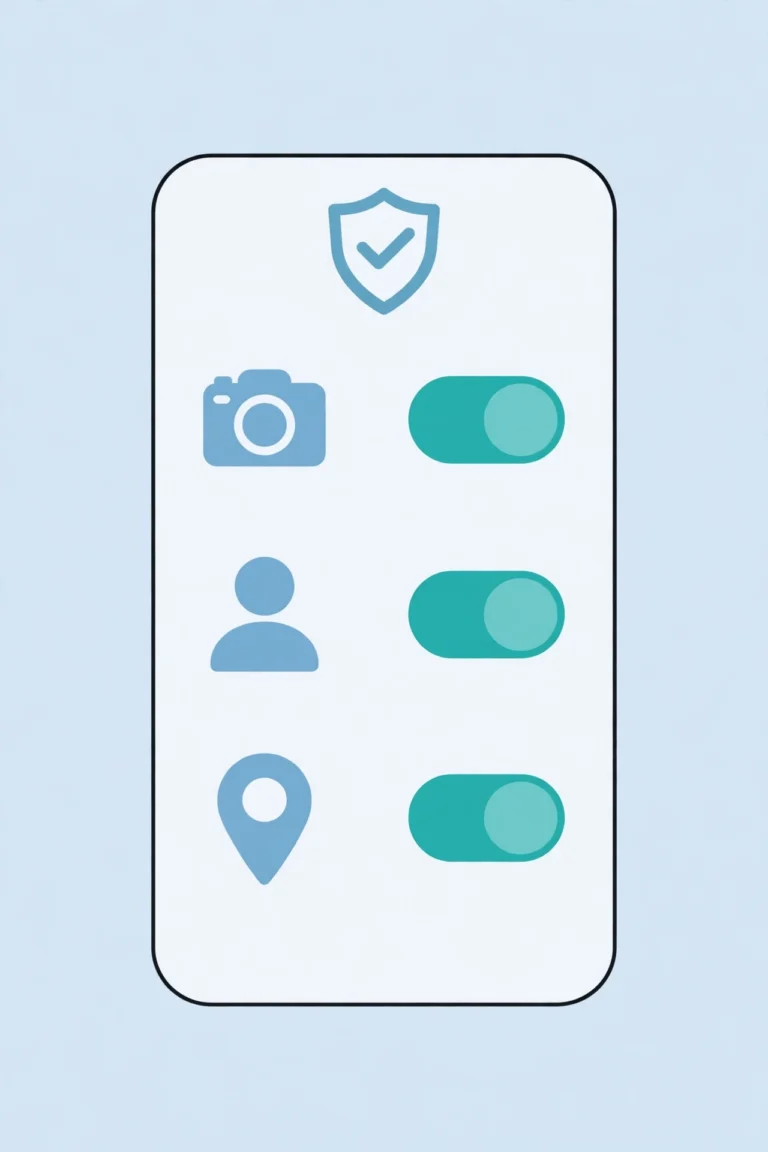
If the app asks for a new permission after an update, or your device shows a security warning, treat that as information. A streaming app should not need contacts, messages, location, or accessibility access to play video, and a warning about an unknown source is a reminder that the usual store checks are missing.
Review the app’s permissions in your device settings and remove anything that is not needed for the feature you want to use. If the app refuses to work without unrelated permissions, that is a warning sign in itself, not a reason to grant everything it asks for. Similarly, do not disable Play Protect or other device protections to make an app work — a fix that requires you to turn off security is not a safe fix.
When Reinstalling Actually Makes Sense
Reinstalling is reasonable only after the simpler checks have failed, and only when the symptom points to the install itself — for example, the app crashes on launch on a device with plenty of storage and a good connection, while other apps work normally. In that case, a clean install may clear corrupted data that a restart did not.
Before you reinstall, note what you will lose: saved settings, watchlists, history, and any downloads. If those matter to you, check whether the app offers any way to preserve them first. After reinstalling, test with one title before changing settings or granting extra permissions, so you know whether the reinstall actually fixed anything.
If a reinstall does not help, do not keep reinstalling different versions from different sites. Repeated installs from unverified sources increase risk without increasing the chance of a fix. At that point, the problem is more likely to be network, device, title availability, or a source-side issue that no local reinstall can solve.
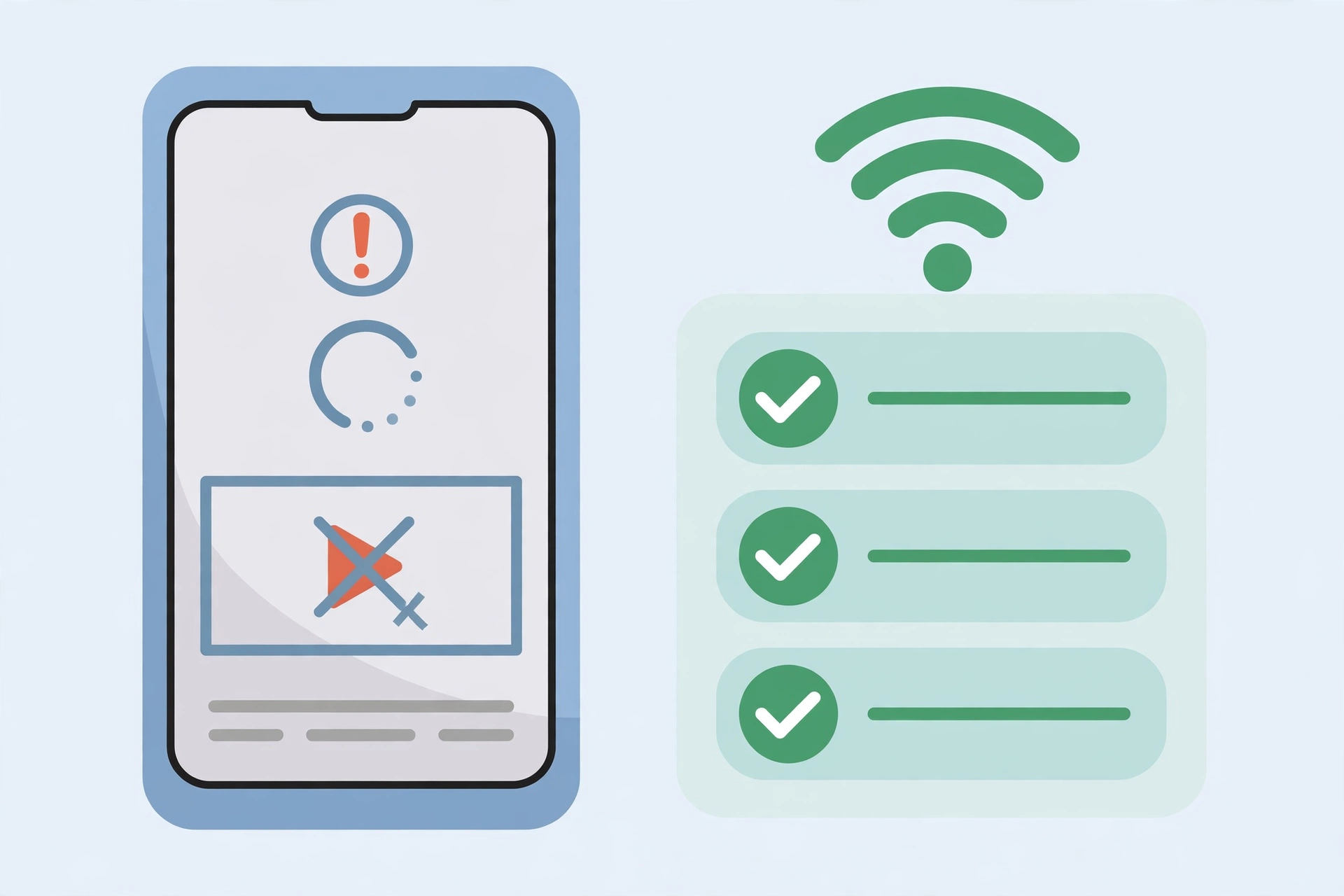
Practical Diagnostic Checklist
Work through this list in order, and stop when you find the cause:
- Describe the exact symptom: crash, freeze, no titles, or one title only.
- Test your connection with another site or licensed service.
- Try a different network, or move closer to your router.
- Restart the device and close unused apps.
- Check free storage, and free up space if it is very low.
- Check whether the problem started after an update or a device change.
- Compare the version claim with independent sources, not just one listing.
- Review permissions and do not disable security protections to force it to work.
- Test one title, then several titles, to separate a title problem from an app problem.
- Reinstall only if the evidence points to a damaged install, and only from a source you have assessed.
- If reinstalling does not help, stop installing new versions and consider licensed alternatives for the titles you want.
FAQs
Q1: Should I reinstall first when a streaming app stops working? No. Check connection, device storage, and whether the problem affects one title or all titles first. Reinstalling is a later step, useful mainly when the install itself looks damaged.
Q2: Does a higher version number mean a better or fixed version? No. Version numbers in listings can be changed easily and are not proof of a genuine, newer, or compatible release. Compare claims across independent sources.
Q3: What if only one film or show fails to play? That usually points to that title’s source or availability, not to your device. Trying other titles first helps you avoid unnecessary reinstalls and setting changes.
Q4: Is it safe to disable security warnings to make an app work? No. Security warnings are information about missing verification. A fix that requires disabling protections should be treated as a warning sign, not a solution.